Custom Random Encounter System (2000/2003)
-
Alternate Random Encounter System
System agnostic: useless in XP and after.There are any number of reasons a developer may not want to use the default Random Encounter system in RPG Maker 2000, but I think the main reason most people will want a custom Random Encounter system is so that they can use custom death handlers, wherein you don't want dying to lead to an automatic game over screen. It's pretty clear to anyone that if you call battles with events, you can tick the box open a conditional branch instead of the game over screen, but the default Random Encounters have no such option, nor is there any way to bypass the automatic game over in battle events.
You will need a fair understanding of variables and switches.
We are going to create:
- A player tracker.
- A step counter.
- A series of encounter rollers.
- An encounter tracker.
We will start with the player tracker.
PLAYER TRACKER
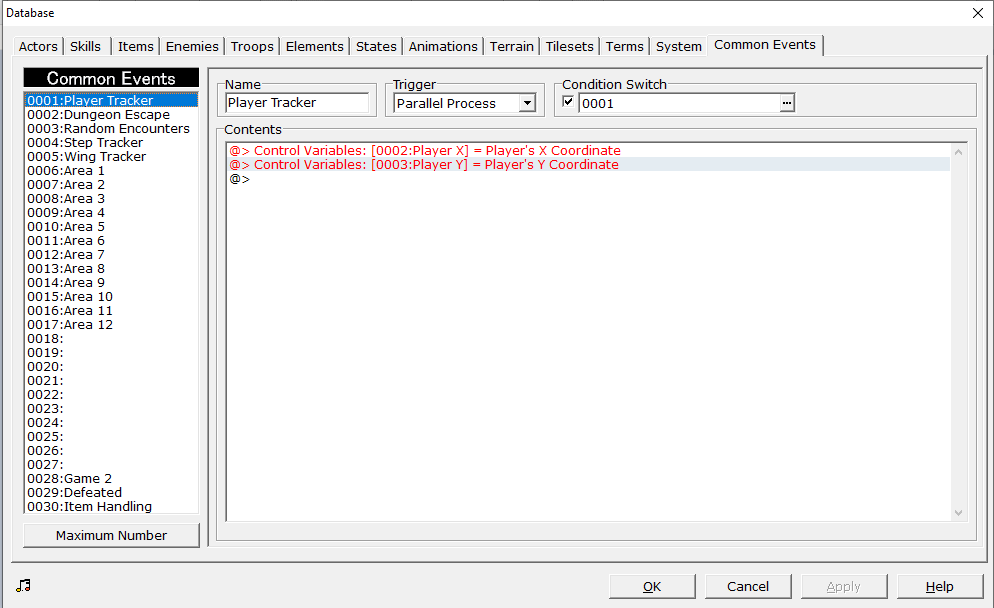
We assume this is a blank project. Open your database and go to common events. Name your first common event “Player Tracker”. Set the Trigger to Parallel Process. Tick the Condition Switch box, create the Switch to 0001: Player Tracker and set the common event to switch 0001. In the player tracker, create the following variables.
@> Control Variables: [0002:Player X] = Player's X Coordinate
@> Control Variables: [0003:Player Y] = Player's Y Coordinate
This is it. That is the entire common event.
STEP COUNTER
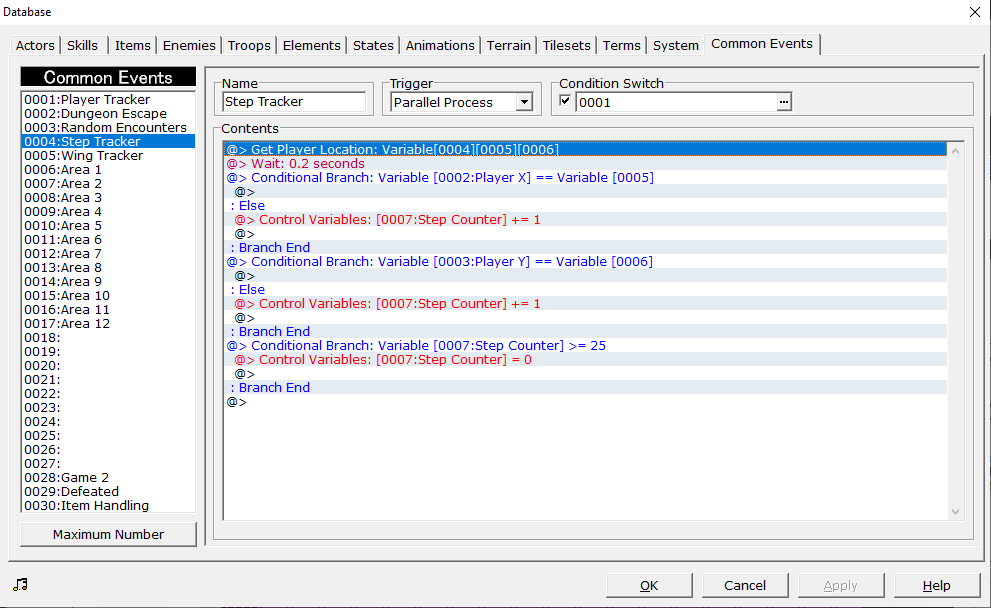
Go to common event 2. Name it Step Counter. Set to the same triggers as your player tracker. Trigger is Parallel Process; switch is 0001: Player Tracker. In the step counter, on the first line, Get Player Location. In Get Player Location, create and set the variables to 0004: Map ID, 0005: Step X, and 0006: Step Y in Map ID:, X Coordinate:, and Y Coordinate respectively.
In line 2, use the Wait command, and set it to a very small increment: 0.1 or 0.2 will each work fine. In line 3, place a conditional branch tracking Player X and in the else branch, create Variable 0007: Step Counter and set to add 1. As follows:
@>Conditional Branch: Variable[0002:Player X] == Variable [0005]
  @>
: Else
  @> Control Variables: [0007:Step Counter] += 1
  @>
: Branch End
Create a second Conditional Branch tracking Player Y.
@>Conditional Branch: Variable[0003:Player Y] == Variable [0006]
  @>
: Else
  @> Control Variables: [0007:Step Counter] += 1
  @>
: Branch End
Now, if we were JUST creating a step counter, I'd end this here, but we're not. We're creating a Random Encounter system, and we need a fail safe in case the process fails. Create a third conditional branch that resets your Step Counter to zero if so many steps have been taken.
@>Conditional Branch: Variable[0007:Step Counter] >= 25
  @> Control Variables: [0007:Step Counter] = 0
  @>
: Branch End
With this third branch, we've created the first part of our Random Encounter range; the maximum step counter, but this does not mean that the most you'll be able to take is 25 steps before an encounter. No. The particular RE system I designed here needs a bit of care in designating step limits. You see, it can miss, and if that happens, you need a way to go back, which is what this does. Technically, the counter should never reach 25. But it can and since that will be out of our encounter range, we want to make sure it can reset.
RANDOM ENCOUNTER EVENTS: PART 1
At this point, you should have two full common events; the Player Tracker and the Step Counter. Now, it is time for the third common event: The Random Encounter event. So go ahead and create a new common event called Random Encounters. Set it to parallel process, and set it to switch 3. Name this switch “Random Encounters”. You are going to need a series of conditional branches in this, and this could get rather long depending on how long your game is and how many different encounter areas you plan on having. Now, you'll note that I've left variable one blank. That's because I like to set my random variables in as close to the beginning of the list as possible. You can put it anywhere, but for this tutorial, variable 1 will be our random dice roller. So, our very first conditional branch will set our minimum steps for random encounters. In this tutorial, we are setting that to 15, which means, our conditional branch will be looking for the step counter variable to hit 15. In this branch, we'll create our dice roller. Name control variable 1 “Random” and set it as Random 1 through 4.
@>Conditional Branch: Variable[0007:Step Counter] == 15
  @> Control Variables: [0001:Random] +1= Random [1...4]
  @>
: Branch End
What we are setting this to is a one in four chance of hitting a random encounter. If you roll 1, you hit an encounter. If you don't, the counter keeps going. How high it should go before cycling back will be in our next branch, so create your second branch below this one.
@>Conditional Branch: Variable[0007:Step Counter] == 20
  @> Control Variables: [0001:Random] +1= Random [1...4]
  @>
: Branch End
And “Wait!” You say! This doesn't cycle anything! This is just another point that could potentially hit an encounter! And that's right. This is simply the intended topmost number that an encounter is rolled, but we need to determine what happens if you roll an encounter or if you miss an encounter. If you miss, we need to reset the step counter, and we don't want to go all the way back to zero because that can actually cause an issue where you could go several hundred steps before hitting an encounter. We are creating a loop where the counter reaches 15, and then creates a loop between 16 and 20 where it is constantly rolling an encounter chance. So let's make that random dice roller actually do something, now. You're going to create a series of conditional branches that determine whether you hit a random encounter, or your steps keep counting.
@>Conditional Branch: Variable[0001:Random] == 1
  @> Comment: This one hits. We need to call a common event that doesn't exist yet, so use this
  @>                 : comment as a place holder. All others will not hit, so they are easy to deal with. :
  @>
: Branch End
@>Conditional Branch: Variable[0001:Random] == 2
  @> Control Variables: [0007:Step Counter] = 16
  @> Control Variables: [0001:Random] = 0
  @>
: Branch End
@>Conditional Branch: Variable[0001:Random] == 3
  @> Control Variables: [0007:Step Counter] = 16
  @> Control Variables: [0001:Random] = 0
  @>
: Branch End
@>Conditional Branch: Variable[0001:Random] == 4
  @> Control Variables: [0007:Step Counter] = 16
  @> Control Variables: [0001:Random] = 0
  @>
: Branch End
There is your Random Encounters event, and clearly, we're not done with it, but we need to leave it for now. What we've created is a random encounter step system that reaches 15, rolls for an encounter, and then if it misses, rolls a random encounter every four steps to see if you hit an encounter. Each roll has a one in four chance of either hitting an encounter and going back to zero, or a three in four chance of missing and rerolling four steps later. Now, this looks like it can't go past 20, but it can. You're forgetting that the step counter isn't perfect, and needs a wait command to make sure it doesn't just start counting up whether you move or not. Because of this, it can absolutely shoot past 20 and just keep going (it won't happen often, but it does happen, and it will absolutely break your Random Encounter system), and you can see here that if that happens, there is no handler to bring the counter back to 0 or 16. Hence why the step counter has a handler that brings everything back to 0 if the counter is more than 25. I suppose I could have set the above handler to Equal to or Greater than 20, but I didn't want to add that to miss chance. Why do I like this? You're probably going to hit a random encounter between 15 to 30 or so steps, but occasionally, you can go 50, 60, 70 or more steps without an encounter. The dice really decide instead of an upper limit.
Your entire code for this event should look like this.
@>Conditional Branch: Variable[0007:Step Counter] == 15
  @> Control Variables: [0001:Random] +1= Random [1...4]
  @>
: Branch End
@>Conditional Branch: Variable[0007:Step Counter] == 20
  @> Control Variables: [0001:Random] +1= Random [1...4]
  @>
: Branch End
@>Conditional Branch: Variable[0001:Random] == 1
  @> Comment: This one hits. We need to call a common event that doesn't exist yet, so use this
  @>                 : comment as a place holder. All others will not hit, so they are easy to deal with. :
  @>
: Branch End
@>Conditional Branch: Variable[0001:Random] == 2
  @> Control Variables: [0007:Step Counter] = 16
  @> Control Variables: [0001:Random] = 0
  @>
: Branch End
@>Conditional Branch: Variable[0001:Random] == 3
  @> Control Variables: [0007:Step Counter] = 16
  @> Control Variables: [0001:Random] = 0
  @>
: Branch End
@>Conditional Branch: Variable[0001:Random] == 4
  @> Control Variables: [0007:Step Counter] = 16
  @> Control Variables: [0001:Random] = 0
  @>
: Branch End
ENCOUNTER TRACKING
Let's save all of this and get out of the database for the time being. We need a way to determine the encounter area, and which encounters your player will hit, which is very simple to do. This part won't take long, and is necessary to continuing with our Random Encounter events. Create an event that is called every time your character enters a new area. The transfer can easily serve this purpose, but if you're on a world map where entering a new area doesn't use a transfer, you'll have to set up paths where the character has to pass through and will trigger an event. Set this event to “Below Player” and to “Player Touch”. In the contents window, create a variable. We'll make this Control Variables: [0009: Encounter Area] = 1. Or 2, or 3, or 4 if those are the areas you're moving into. If it's a transfer, pop it anywhere in the content screen there.
That's all. Simply number your areas and make sure your player triggers that area every time they enter it. If it's not being done with a transfer, you'll probably want to do it with two events per area: the first one you step on is the area you're currently in, and the second one following it triggers the new area.

[img]/media/content/users/40682/locker/Encounter_Tracker_2.png[/img]
Note where on the map each event is highlighted.RANDOM ENCOUNTER EVENTS: PART 2
Now, let's give you're encounter roller something to call. You will want to allocate a series of common events for this. Each common event will be your encounter region. In each common event, you will designate which monsters get encountered for each area. So let's assemble the first area event.
Create a new common event called “Area 1”. Please keep these numbers consistent since we'll be using them to correspond with your Encounter Area variable. This event will be set to “none”. It will be called in your Random Encounters event. Remember where we set that comment? Don't worry about that yet. There's a little bit we have to do there.
Time to roll the dice. The encounter has been called! But which monster? Which monster? We'll assume you have you three monsters encounters in your first area. At the top of the content box, place a random variable set to 1 through 3.
@> Control Variables: [0001:Random] +1= Random [1...3]Yes, you can use the same random variable. It's simply a dice roller, after all. So, for three monster encounters, you need three conditional branches! If Variable 1 equals 1, 2, or 3! In each branch, set each monster encounter with the Battle Processing command. Allow escape, and tick the circle to “interrupt event” if player chose to escape. Tick the circle to “Conditional Branch” under the “If Defeated” setting (even if you want a regular game over, you should do this.). Under the Win condition of the Battle Processing branch, set your Step Counter, Variable 0007 to 0 and your Random variable, Variable 0001 to 0. In the “If defeated” handler, do whatever you want! Call a custom game over! Call a regular game over (there are really plenty of other reasons to want to make a custom encounter system that has nothing to do with skipping the game over!)! Transport your character to a new location!
@>Conditional Branch: Variable[0001:Random] == 1
  @> Battle Processing: Troop 1
   : If Won
    @> Control Variables: [0001:Random] = 0
    @> Control Variables: [0007:Step Counter] = 16
    @> End Event Processing
   : If Defeated
    @> Comment: I will leave up to you what happens here.
    @>
: Branch End
@>Conditional Branch: Variable[0001:Random] == 2
  @> Battle Processing: Troop 2
   : If Won
    @> Control Variables: [0001:Random] = 0
    @> Control Variables: [0007:Step Counter] = 16
    @> End Event Processing
   : If Defeated
    @> Comment: I will leave up to you what happens here.
    @>
: Branch End
@>Conditional Branch: Variable[0001:Random] == 3
  @> Battle Processing: Troop 3
   : If Won
    @> Control Variables: [0001:Random] = 0
    @> Control Variables: [0007:Step Counter] = 16
    @> End Event Processing
   : If Defeated
    @> Comment: I will leave up to you what happens here.
    @>
: Branch End
As a redundancy, copy the two control variables and the End Event Processing command in your win condition, and paste them at the end of the Area 1 Common Event after all conditional branches. This is just so your character doesn't get jammed up if for some reason, something doesn't fire correctly.
Return to your Random Encounters Common Event. Recall the random roll that hit but we put a comment in? Here it is:
@>Conditional Branch: Variable[0001:Random] == 1
  @> Comment: This one hits. We need to call a common event that doesn't exist yet, so use this
  @>                 : comment as a place holder. All others will not hit, so they are easy to deal with. :
  @>
: Branch End
In place of that comment, place another conditional branch. If Variable Encounter Area is equal to 1, set variables 7 and 1 to 0, and call common event: Area 1. You'll have something that looks like this:
@>Conditional Branch: Variable[0001:Random] == 1
  @>Conditional Branch: Variable[0009:Encounter Area] == 1
  @> Control Variables: [0007:Step Counter] = 0
  @> Control Variables: [0001:Random] = 0
  @> Call Event: Area 1
  @>
: Branch End
Want more? Create a second common event called Area 2! Repeat the instructions for Area 1, except replace your creatures with harder enemies. If you want more enemy troops, increase the random number, and increase the number of conditional branches to match. Once you've done that, update your map with the new Encounter Area variable events, and return to Random Encounters and update your code.
@>Conditional Branch: Variable[0001:Random] == 1
  @>Conditional Branch: Variable[0009:Encounter Area] == 1
    @> Control Variables: [0007:Step Counter] = 0
    @> Control Variables: [0001:Random] = 0
    @> Call Event: Area 1
  : Branch End
  @>Conditional Branch: Variable[0009:Encounter Area] == 2
    @> Control Variables: [0007:Step Counter] = 0
    @> Control Variables: [0001:Random] = 0
    @> Call Event: Area 2
   : Branch End
  @>
: Branch End
@>
Now, Your Random Encounters event should look like this.
@>Conditional Branch: Variable[0007:Step Counter] == 15
  @> Control Variables: [0001:Random] +1= Random [1...4]
  @>
: Branch End
@>Conditional Branch: Variable[0007:Step Counter] == 20
  @> Control Variables: [0001:Random] +1= Random [1...4]
  @>
: Branch End
@>Conditional Branch: Variable[0001:Random] == 1
  @>Conditional Branch: Variable[0009:Encounter Area] == 1
    @> Control Variables: [0007:Step Counter] = 0
    @> Control Variables: [0001:Random] = 0
    @> Call Event: Area 1
  : Branch End
  @>Conditional Branch: Variable[0009:Encounter Area] == 2
    @> Control Variables: [0007:Step Counter] = 0
    @> Control Variables: [0001:Random] = 0
    @> Call Event: Area 2
   : Branch End
  @>
: Branch End
@>
@>Conditional Branch: Variable[0001:Random] == 2
  @> Control Variables: [0007:Step Counter] = 16
  @> Control Variables: [0001:Random] = 0
  @>
: Branch End
@>Conditional Branch: Variable[0001:Random] == 3
  @> Control Variables: [0007:Step Counter] = 16
  @> Control Variables: [0001:Random] = 0
  @>
: Branch End
@>Conditional Branch: Variable[0001:Random] == 4
  @> Control Variables: [0007:Step Counter] = 16
  @> Control Variables: [0001:Random] = 0
  @>
: Branch End
FINISHING TOUCHES
There's more to do! This is a very involved process! You need to tell your game when your character is facing enemies, and when they aren't. This is very simple. In areas that don't have enemy encounters, simply turn Switch 0003:Random Encounters OFF. In areas where you DO face random encounters, turn it ON! Again, this can be done in the transfer, or if there is no transfer, make sure your character must trigger an event to get to and from areas with encounters and toggle the switch there.
Now, let's take a look at all of these, in engine, together!


I hope you find this useful!
-
What the heck this is incredible, thank you so much for submitting these!!!
THANK YOU SO MUCH FOR JOINING OUR FORUMS!!!!!!!!
-
What the heck this is incredible, thank you so much for submitting these!!!
@DecentTreatment Yeah, I have three or four more tutorials. I'll add those, probably tomorrow and the next day. I've got a lot of stuff to do, and they take awhile to undo the RMN formatting and adjust the picture links.
-
Huge, thank you! That's so exciting!!